

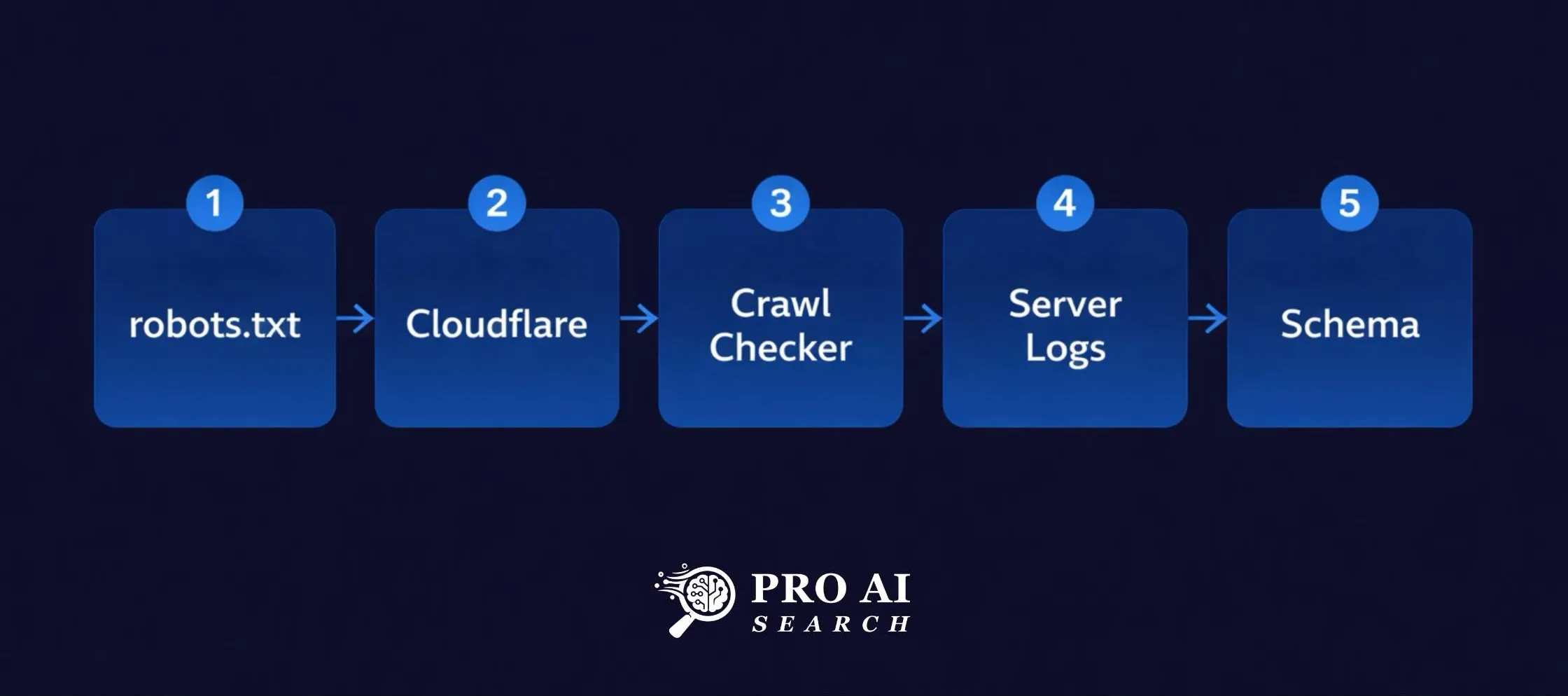
How to check if AI can read your website comes down to five free steps. This audit tells you exactly which bots can reach your site, what is stopping them, and how to fix it in under an hour.
I manage growth for LearnQ.ai, an EdTech platform in India. A few months back I noticed something that made no sense. Pages that were ranking on Google were starting to generate referral traffic from ChatGPT. But other pages on the same domain, with equally strong content, were getting nothing.
Same site. Same content quality. Completely different results in AI search.
I started digging. The problem was not the content on those pages. It was that something was quietly stopping AI crawlers from reaching them at all. Once I found and fixed it, the pattern changed.
That experience is why I wrote this guide. If you have never audited your site for AI crawler access, there is a good chance something is blocking bots you want to allow in. This audit takes less than an hour and costs nothing.
Why AI Crawler Access Matters More Than You Think
AI crawlers work differently from Googlebot. Googlebot crawls to index your content for search rankings. AI crawlers like GPTBot, PerplexityBot, and ClaudeBot crawl to retrieve your content for live answers, citations, and training data. Making sure Claude can reach your pages is the technical baseline: our Claude AI business visibility guide covers the content signals Claude uses to decide what to cite.
If they cannot reach your pages, you simply do not exist in AI search. It does not matter how well-written your content is.
The scale of this problem is larger than most people realise. According to Cloudflare’s analysis of robots.txt files across nearly 3,900 of the top 10,000 domains, AI crawlers are the most frequently blocked user agents on the web. GPTBot, ClaudeBot, and CCBot had the highest number of full disallow directives. A separate analysis found that AI-blocking by reputable sites increased from 23% in September 2023 to nearly 60% by May 2025.f
Many of those blocks are deliberate. But a significant portion are accidental, caused by security plugins, CDN settings, or robots.txt configurations that were never meant to block AI crawlers specifically.
Here is how to find out which category you are in.
The Complete User-Agent Reference
Before you audit, you need to know what to look for. Here are the main AI crawlers and what they do:
| Crawler | Platform | Purpose |
|---|---|---|
| GPTBot | OpenAI | Training data collection |
| OAI-SearchBot | OpenAI | ChatGPT live search retrieval |
| ChatGPT-User | OpenAI | Real-time page fetch when user asks ChatGPT |
| PerplexityBot | Perplexity | Indexing and retrieval |
| ClaudeBot | Anthropic | Training data |
| Claude-Web | Anthropic | Live retrieval for Claude AI |
| Google-Extended | Gemini and AI training (separate from search) | |
| Googlebot | Standard search indexing and AI Overviews | |
| Bingbot | Microsoft | Bing indexing, feeds Microsoft Copilot |
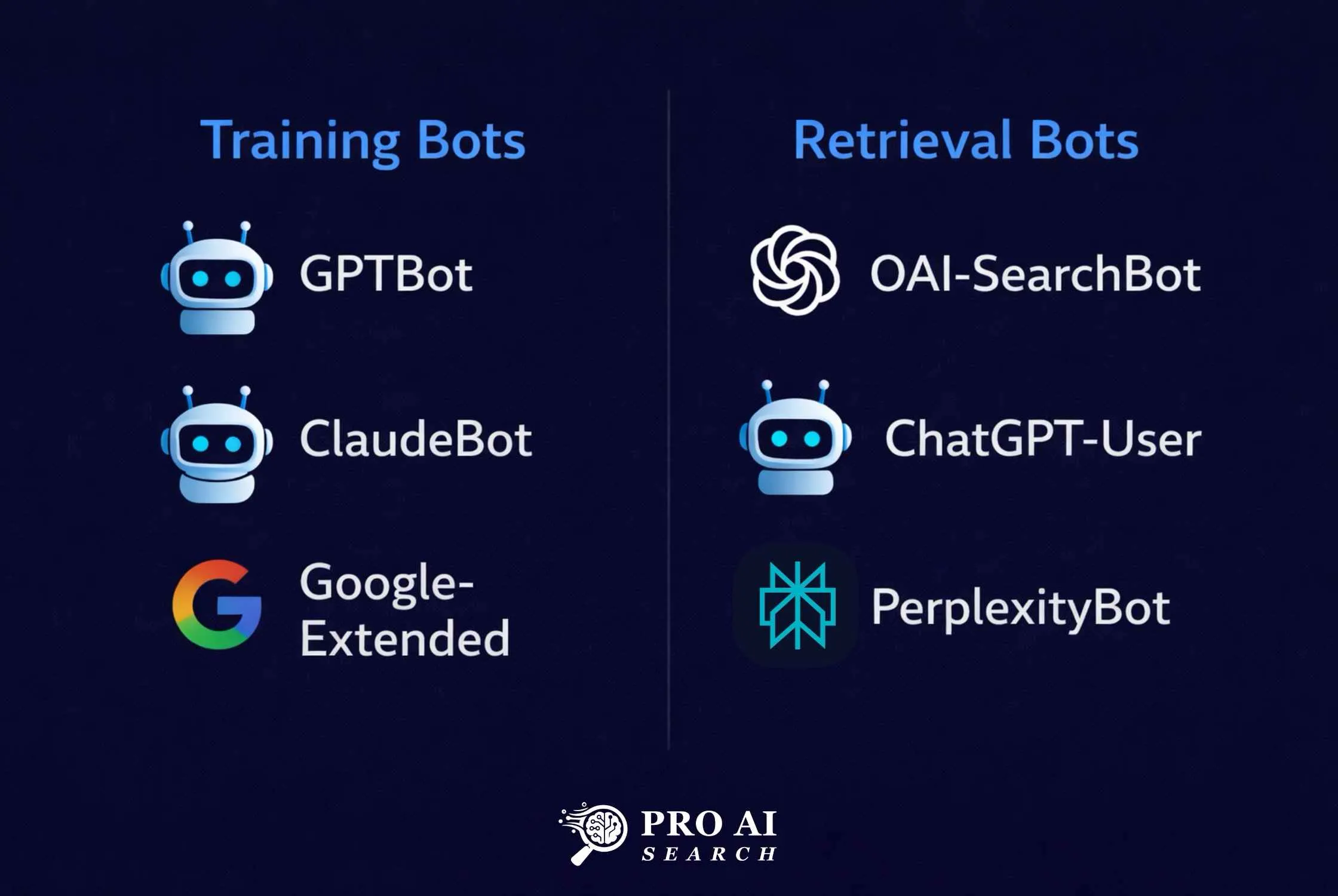
One important distinction: GPTBot and OAI-SearchBot are different bots from OpenAI. GPTBot collects training data. OAI-SearchBot powers ChatGPT’s live web search results. If you want to appear in ChatGPT answers, you need to allow OAI-SearchBot and ChatGPT-User, not necessarily GPTBot. Some site owners block GPTBot to protect training data while explicitly allowing OAI-SearchBot to preserve search visibility. That is a legitimate strategy.
Step 1: Read Your robots.txt File
Start here. Open your browser and go to:
yourdomain.com/robots.txtYou are looking for any of these directives:
User-agent: GPTBot
Disallow: /

User-agent: OAI-SearchBot
Disallow: /

User-agent: PerplexityBot
Disallow: /

User-agent: ClaudeBot
Disallow: /

User-agent: ChatGPT-User
Disallow: /
If you see Disallow: / next to any of these, that bot is fully blocked. If you see nothing about these bots at all, they are allowed by default. If you see Allow: /, they are explicitly permitted.
To fix a block in WordPress, the easiest method is through Rank Math. Go to Rank Math, General Settings, Edit robots.txt. Remove any disallow rules for AI crawlers you want to allow, or add explicit allow rules. For the complete list of user-agent strings and ready-to-paste code, see our robots.txt guide for AI crawlers.
If you use WPCode, you can also add a text snippet set to insert into robots.txt:
User-agent: GPTBot
Allow: /

User-agent: OAI-SearchBot
Allow: /

User-agent: ChatGPT-User
Allow: /

User-agent: PerplexityBot
Allow: /

User-agent: ClaudeBot
Allow: /

User-agent: Google-Extended
Allow: /
Save and verify the change live at yourdomain.com/robots.txt before moving on.
Step 2: Check Cloudflare Bot Fight Mode
This is the most common silent blocker. Cloudflare’s Bot Fight Mode identifies and blocks automated traffic at the network layer, before requests even reach your server. AI crawlers are automated. Bot Fight Mode blocks them. Your robots.txt can say Allow all day long and it makes no difference if Cloudflare is stopping them at the door.
You will not see any error in your WordPress logs. The request never reaches WordPress. This is exactly what was happening with some of our LearnQ.ai pages.
To check and fix it:
- Log into your Cloudflare dashboard
- Select your domain
- Go to Security, then Bots
- Look for Bot Fight Mode and check if it is ON
If it is ON, turn it OFF.
If you are on a paid Cloudflare plan using Super Bot Fight Mode:
- Go to Security, then Bots
- Find the “Definitely automated” setting
- Change it from Block to Allow
Cloudflare has also introduced AI Crawl Control, available on all plans including free. This is a dedicated dashboard that shows you exactly which AI crawlers are visiting your site, how often, and whether they are following your robots.txt directives. On the free plan, the Metrics tab shows data for the past 24 hours. To access it, go to your Cloudflare dashboard, select your domain, and look for AI Crawl Control in the left navigation.
This is worth checking even after you fix Bot Fight Mode. It will show you whether GPTBot, PerplexityBot, and others are actually reaching your pages.
Step 3: Use a Free AI Crawlability Checker
After fixing your robots.txt and Cloudflare settings, verify that the fix worked using an external tool. Two free options worth using:
crawlercheck.com checks your robots.txt file, meta robots tags, and X-Robots-Tag HTTP headers for a specific URL. It shows you exactly which bots are allowed or blocked based on all three signals, not just robots.txt. This is useful because a page can be allowed in robots.txt but blocked by a meta robots noindex tag.
llmrefs.com/tools/ai-crawl-checker goes further. It sends an actual request using the GPTBot user-agent and shows you what AI crawlers can actually read on your page. It reports content density, whether structured data is present, schema types detected, and whether AI bots are blocked at the server level. It also detects your framework and whether the page is static or dynamically rendered.
For reference, when I ran the LLMrefs checker on proaisearch.com/ai-search-optimization/, the result came back: AI Bot Blocked: No, Structured Data: Yes, Schema Types: FAQPage, Page Type: Static. That is the result you want to see.
Run both tools on your most important pages, not just your homepage.
Step 4: Check Your Server Logs for AI Bot Visits
This step tells you whether AI crawlers are actually visiting your site, regardless of what your settings say they should be doing. It is the ground truth check.
In cPanel, go to Raw Access Logs and download your latest log file. Open it and search for these user-agent strings:
GPTBotOAI-SearchBotChatGPT-UserPerplexityBotClaudeBot
If you find them appearing regularly with HTTP 200 responses, AI crawlers are reaching your site successfully. If you find them with HTTP 403 or 429 responses, something is blocking them despite your robots.txt settings, which usually points back to a security plugin or firewall rule.
If you find no mention of these bots at all and your site has been live for more than a few weeks, that is a red flag worth investigating. It may mean Cloudflare is intercepting and blocking them before they reach your server.
For WordPress hosting without cPanel access, check with your host about log file access. Most managed WordPress hosts like Kinsta, WP Engine, and Cloudways provide log access through their dashboards.
Step 5: Verify Your Schema Markup Is Readable
This step is often skipped but it matters. AI crawlers do not just need to reach your page. They need to be able to extract structured information from it. Schema markup is the clearest signal you can give them about what your content is and who wrote it. For the full data on how much schema types affect AI visibility, read our rich snippets SEO and AI visibility study.
Use Google’s Rich Results Test at search.google.com/test/rich-results. Paste any of your important page URLs and run the test. You want to see:
- Article schema with author name and job title
- FAQPage schema if your page has FAQ content
- BreadcrumbList schema for navigation context
- No errors or warnings on any of these
If schema is missing or showing errors, AI crawlers are still reaching the page but they are working much harder to understand it. Pages with clean schema get cited more frequently because the structured data directly feeds AI answer extraction.
For WordPress users on Rank Math, go to the post or page editor, open the Rank Math panel, click Schema, and verify the schema type is set correctly. For pillar pages and blog posts, it should be set to Article with your author details populated.
Quick Fix Reference
| Problem | Likely Cause | Fix |
|---|---|---|
| Bot blocked in robots.txt | Security plugin or manual rule | Remove disallow or add explicit allow in Rank Math or WPCode |
| Bot reaching site but getting 403 | Cloudflare Bot Fight Mode | Turn off in Security, Bots |
| No bot visits in logs at all | Cloudflare intercepting pre-server | Check AI Crawl Control dashboard, disable Bot Fight Mode |
| Page blocked via meta robots | Noindex or nofollow meta tag | Check page-level settings in Rank Math |
| Schema errors | Incomplete or conflicting markup | Fix in Rank Math Schema tab, validate in Rich Results Test |
| Dynamic content not readable | JavaScript-rendered content | Switch to server-side rendering or ensure static HTML fallback |
What to Expect After You Fix It
Fixing crawler access does not produce overnight results. Based on my experience with LearnQ.ai, expect four to six weeks before you start seeing consistent AI referral traffic from platforms like ChatGPT after resolving access issues. Perplexity tends to move faster because it has its own active crawler rather than relying on Bing’s index like ChatGPT does. For a full breakdown of how to get your site appearing in Perplexity specifically, see our guide on how to rank in Perplexity AI.
The way to track progress is through GA4. Set up a custom channel grouping for AI referrals by adding chat.openai.com, perplexity.ai, and gemini.google.com as referral sources. Our step-by-step guide on setting up GA4 for AI search tracking covers the exact configuration. Once you start seeing traffic from these sources, you know the crawlers are not just reaching your site but your content is being cited in answers.
If you want to go deeper on the technical setup beyond just crawler access, the full LLM SEO implementation guide on Pro AI Search covers llms.txt creation, schema markup in detail, and the complete technical stack for AI search visibility. For the specific question of impact, our llms.txt SEO effectiveness study tests that directly.
Update (May 2026): Google has officially confirmed that llms.txt has no effect on Google AI Overviews or AI Mode. Its impact on ChatGPT and Perplexity remains unconfirmed. If you are optimizing for Google’s AI features, you can skip llms.txt. If optimizing for ChatGPT or Perplexity, it remains a low-cost step worth trying.
The most common question I get is how to check if AI can read your website without spending money on tools. The five steps above cover everything you need using free resources only.
FAQ
Does fixing AI crawler access guarantee citations?
No. Fixing crawler access removes a technical barrier but does not guarantee citations. AI systems also weigh content quality, domain authority, structured data, and topic relevance when selecting sources. Think of crawler access as the minimum requirement. Everything else determines how often you get cited.
Should I block GPTBot but allow OAI-SearchBot?
This is a legitimate strategy if you want to protect your content from being used for training while still appearing in ChatGPT live search results. GPTBot collects training data. OAI-SearchBot powers real-time ChatGPT search. They are separate bots and can be treated differently in your robots.txt.
Does Cloudflare Bot Fight Mode affect Google too?
No. Googlebot is on an allowlist in Cloudflare’s Bot Fight Mode and is not blocked by it. The bots that get blocked are third-party automated bots, which includes AI crawlers from OpenAI, Anthropic, and Perplexity.
How often should I run this audit?
Run it whenever you make changes to your security settings, install a new plugin, or migrate to a new hosting environment. Any of these can inadvertently change bot access. A quarterly check is a reasonable routine for an established site. For a broader 30-point technical readiness audit, our technical GEO audit checklist covers everything beyond just crawler access.
If you want to extend your audit beyond technical access to content structure, authority, and measurement, the complete AI search optimization checklist covers all five dimensions in one place.
What if my site is on shared hosting without Cloudflare?
Skip steps 2 and 4 if you are not using Cloudflare and have no log access. Focus on steps 1, 3, and 5. The robots.txt check and the external crawlability tools will catch most common issues.
Once AI crawlers can access your site, the next step is content optimization for AI search to ensure what they find is structured for citation.